Install Guide how to replace strain gauge PCB and strain gauge module on K1 Series (K1 Max, K1C, K1 3D Printer)
The strain gauge and its dedicated PCB are critical components of the K1 Max's "AI Z-Offset" and bed levelling system, detecting nozzle contact with the build surface . If you're experiencing inconsistent first layers, probe errors, or physical damage to the sensor or its small circuit board, replacing just the strain gauge assembly is a targeted fix. Note: The strain gauge is extremely sensitive to over-tightening of the nozzle or heat sink screws, as this pre-loads the sensor and leads to inaccurate readings . After installation, recalibration of the Z-offset and bed levelling is essential.
TABLE OF CONTENTS
- Spare Part:
- Install Video:
- Install Manual Written:
- Parts Required:
- 1. Home Printer, and move Z down ~30mm
- 2. Turn Off The Printer
- 3. Remove Flexible Build Plate
- 4. Unscrew build plate fasteners.
- 5. Move the toolhead and lift the build plate
- 6. You can remove the fixed isolation spacer/post.
- 7. Slowly lift the insulation foam tape to reveal electronics and wiring.
- 8. Use some iso alcohol to loosen the hot glue on connector.
- 9. Remove and Replace PCB Strain Guage Board.
- Optional 10. Remove/Replace Strain Guage
- 11. Reassembly
- 12. Re-Install Bed
- 13. Power On The Machine
- 14. Re-Run Calibration
Spare Part:
Strain Gauge PCB for K1 Series
Install Video:
(Same guide is applicable for K1 / K1C, just the strain gauge is same unit)
Install Manual Written:
Parts Required:
- Adjustable Wrench
- Allen Key Set
(Tools kits supplied with printer)
Consumable: Iso Alcohol
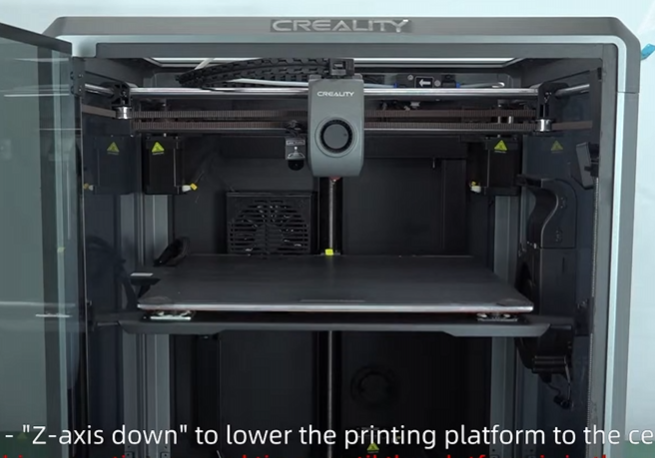
1. Home Printer, and move Z down ~30mm
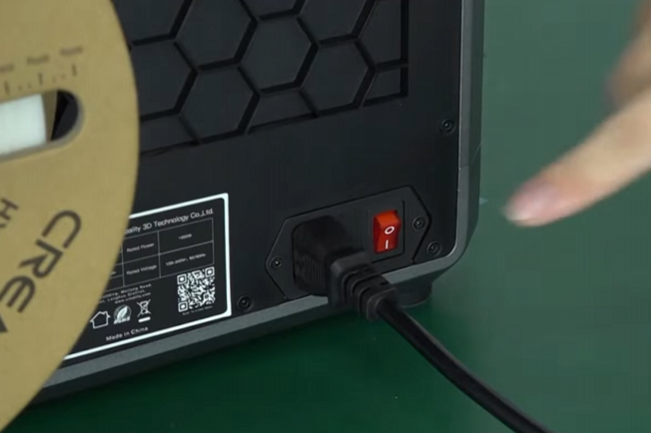
2. Turn Off The Printer
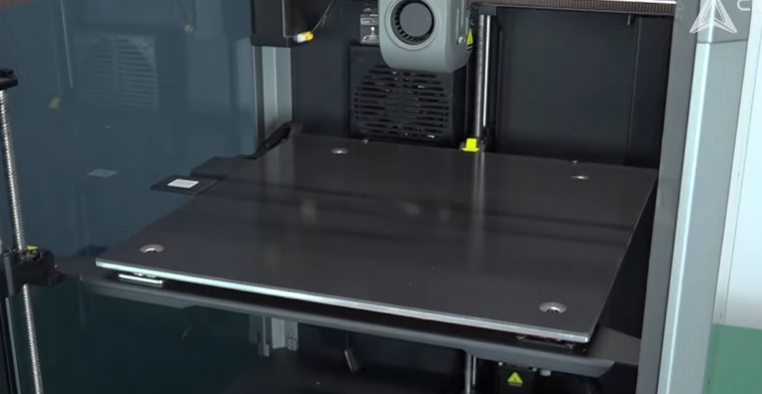
3. Remove Flexible Build Plate
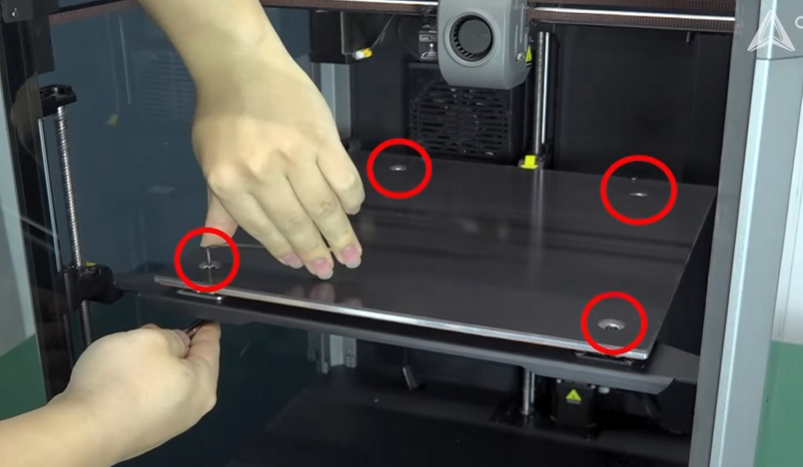
4. Unscrew build plate fasteners.
Using hex wrench to secure the hex nut, while using allen key to remove fastener. Remove the 4 fastener.
5. Move the toolhead and lift the build plate
Move the toolhead to the right back corner and lift the bed, you can use towel/paper to prevent scratching smooth rod, you can push the toolhead back to right side using drag chain to keep the build plate up.
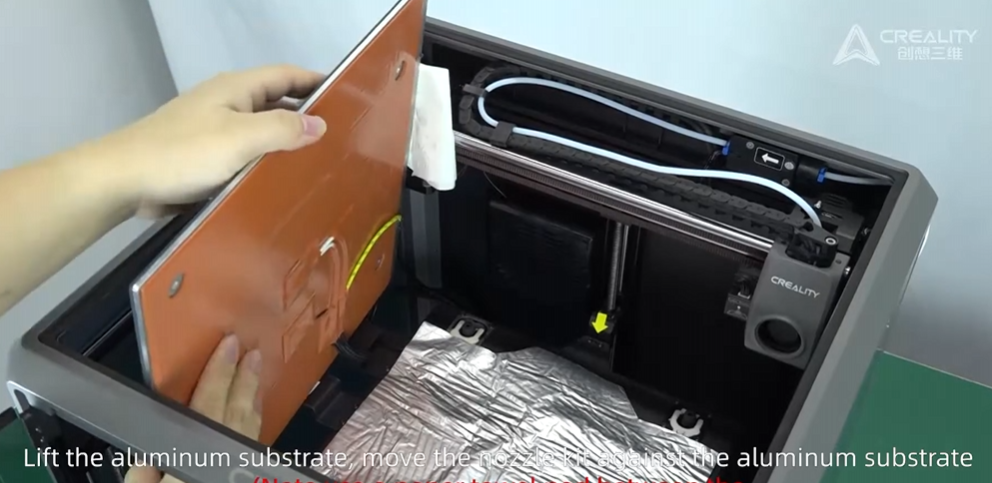
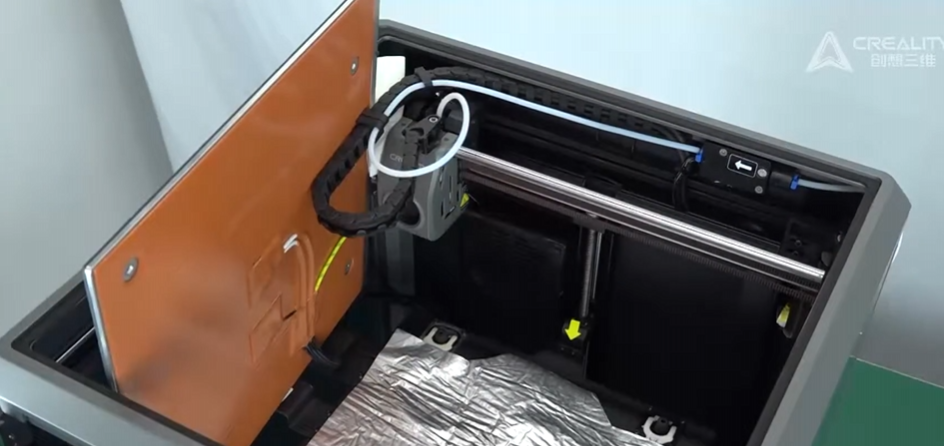
6. You can remove the fixed isolation spacer/post.
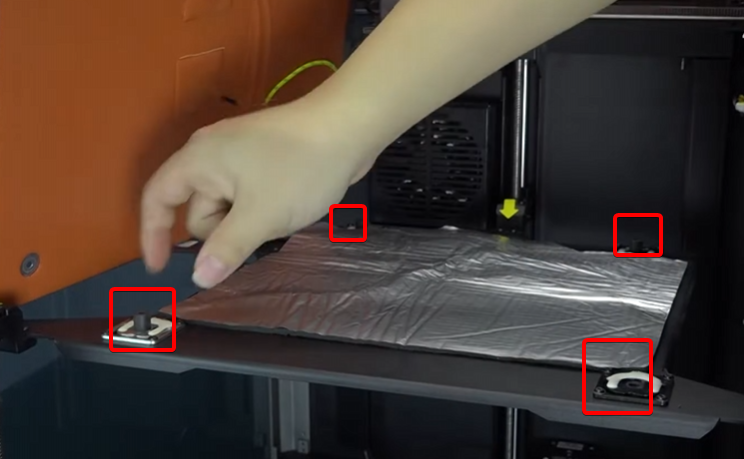
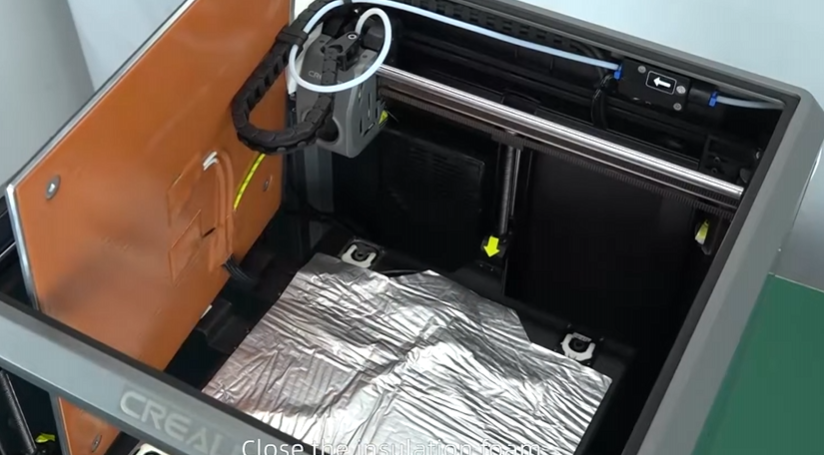
7. Slowly lift the insulation foam tape to reveal electronics and wiring.
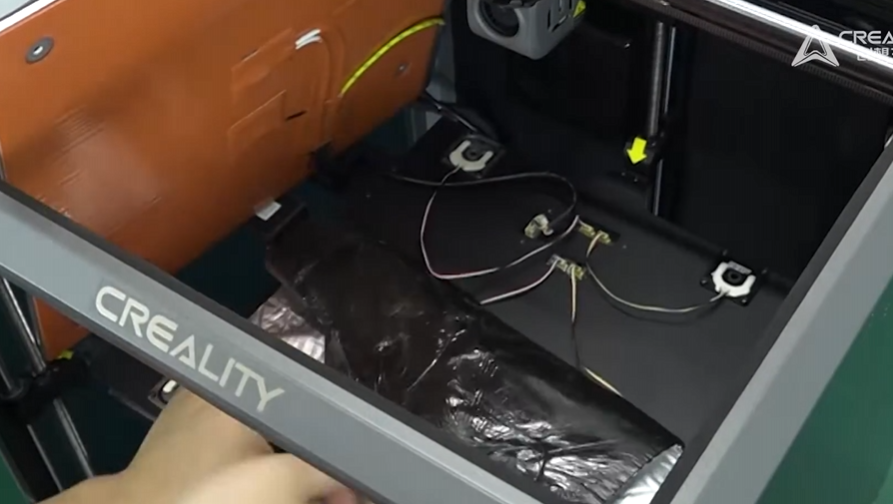
8. Use some iso alcohol to loosen the hot glue on connector.
Once the hot glue is loosen, you can remove the connector.
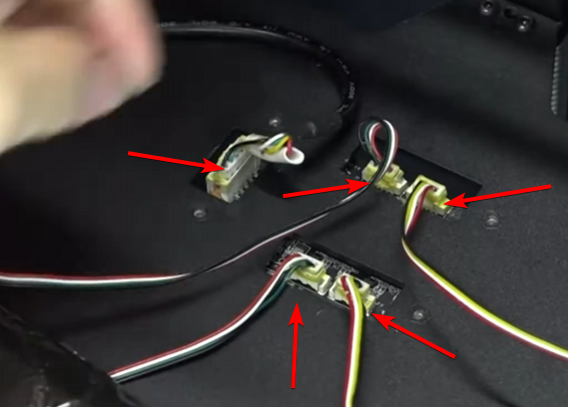
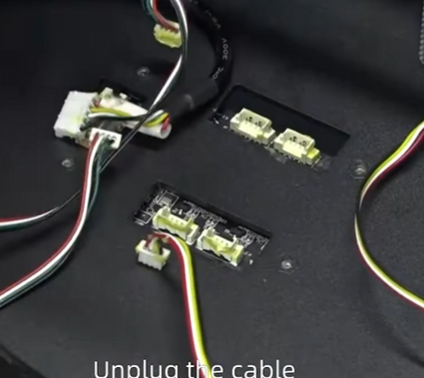
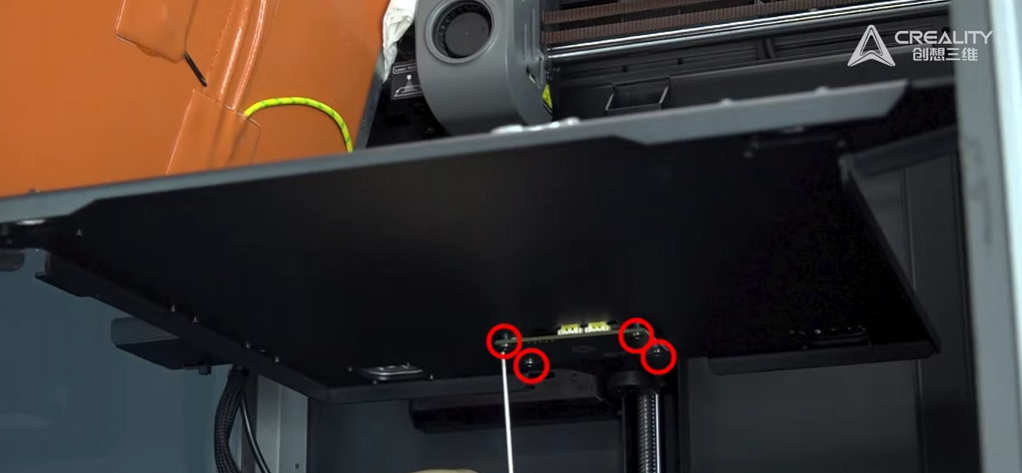
9. Remove and Replace PCB Strain Guage Board.
Using Allen key to remove the four fastener.
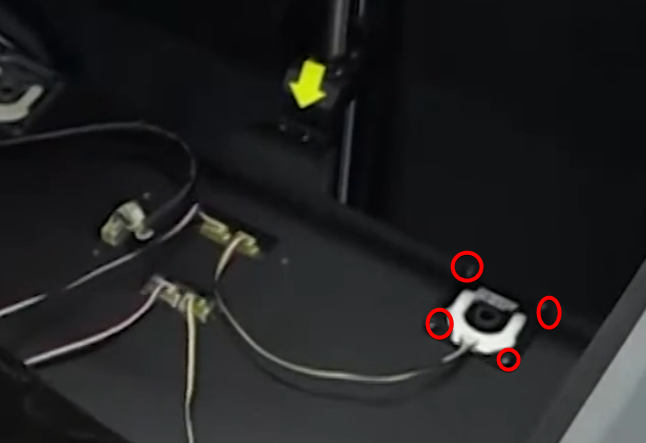
Optional 10. Remove/Replace Strain Guage
Do note, the K1 Max, as two different strain gauge with differ wiring, the front unit has longer wiring. You can use allen to remove
11. Reassembly
Re-plug the connector of each of strain gauge, ensure the orientation of the connectors.
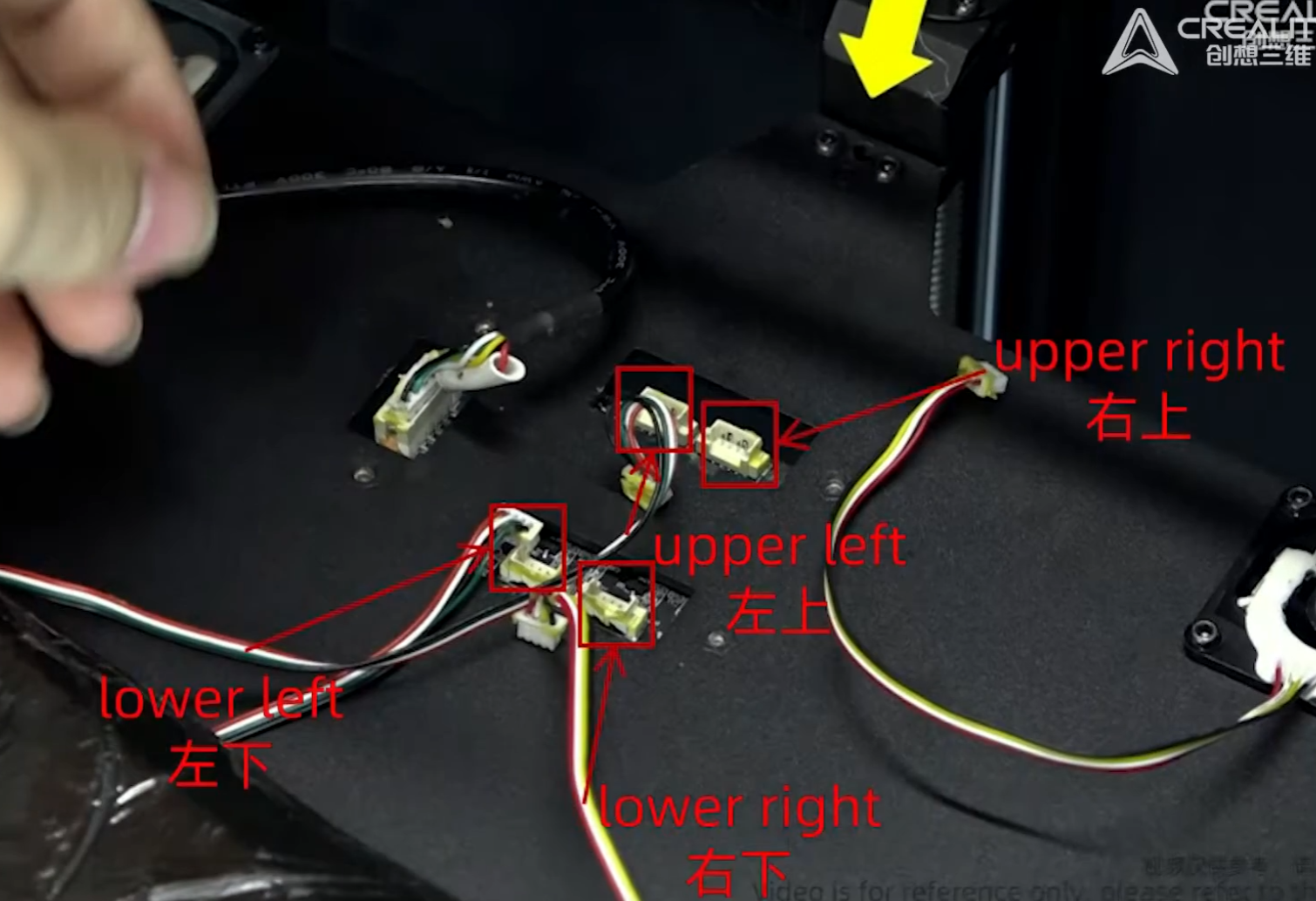
Re-apply the insulation foam tape and re-install insulation spacer/post.

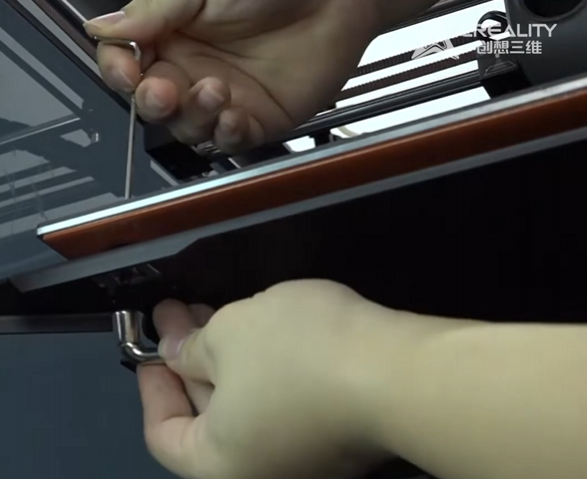
12. Re-Install Bed
Using the hex nut and the fasteners to secure the bed, figure tight is fine, for all four corner.
13. Power On The Machine

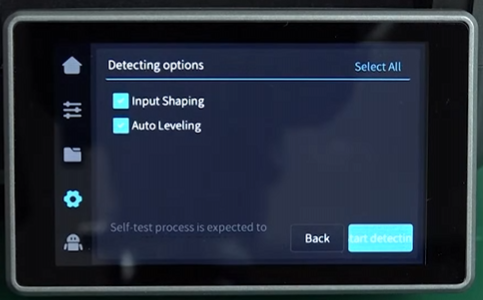
14. Re-Run Calibration
Under Setting, Device self test, and select all option and click on calibration.
Was this article helpful?
That’s Great!
Thank you for your feedback
Sorry! We couldn't be helpful
Thank you for your feedback
Feedback sent
We appreciate your effort and will try to fix the article