Keeping your Ender 3 V4 in top printing condition means knowing when and how to replace the nozzle, whether you're clearing a stubborn clog, switching to a different nozzle size for faster or more detailed prints, or simply replacing a worn nozzle to restore print quality . This step-by-step guide walks you through the entire process, from preparing your printer and safely removing the old nozzle to installing the new one with proper thermal paste application and running the necessary self-checks to ensure everything is working perfectly . With the right technique, you can avoid common issues like leaks or heat creep that lead to failed prints .
TABLE OF CONTENTS
- Quick Reference: Tools & Common Issues
- Spare Part:
- Install Video:
- Written Guide:
- Step1: Ensure filament has been unloaded from the machine/toolhead.
- Step 2: If the machine is not power on, power on the machine, and using on screen move command move the gantry to higher location, roughly 30-40mm higher from the bed and centre of the toolhead for easier access.
- Step 3: Wait for the machine to cooldown, before powering off the machine and remove the front cover.
- Step 4: Remove Silicon Sock
- Step 5: Release the nozzle clip by pushing downwards and out to release the clip.
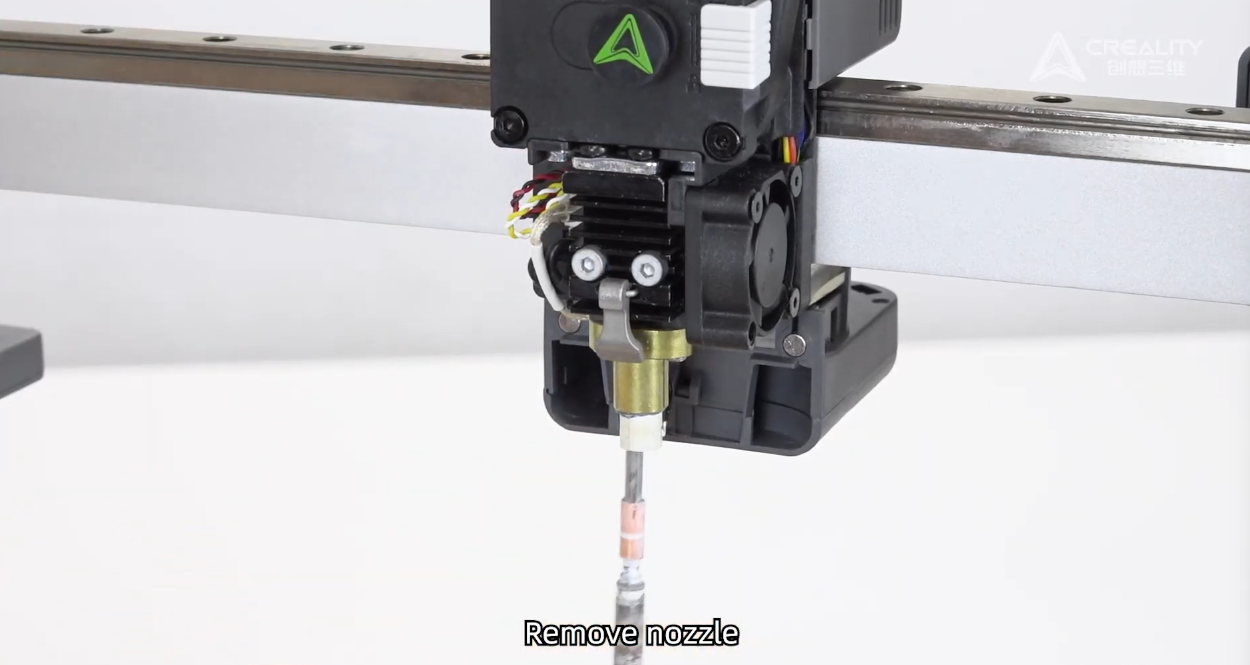
- Step 6: Pull and remove the nozzle.
- Step 7: Install New Nozzle
- Step 8: Pull the nozzle clip to secure the new nozzle and reinstall sock.
- Step 9: Reinstall front fan cover, by pressing down the cutter blade leaver to install front cover.
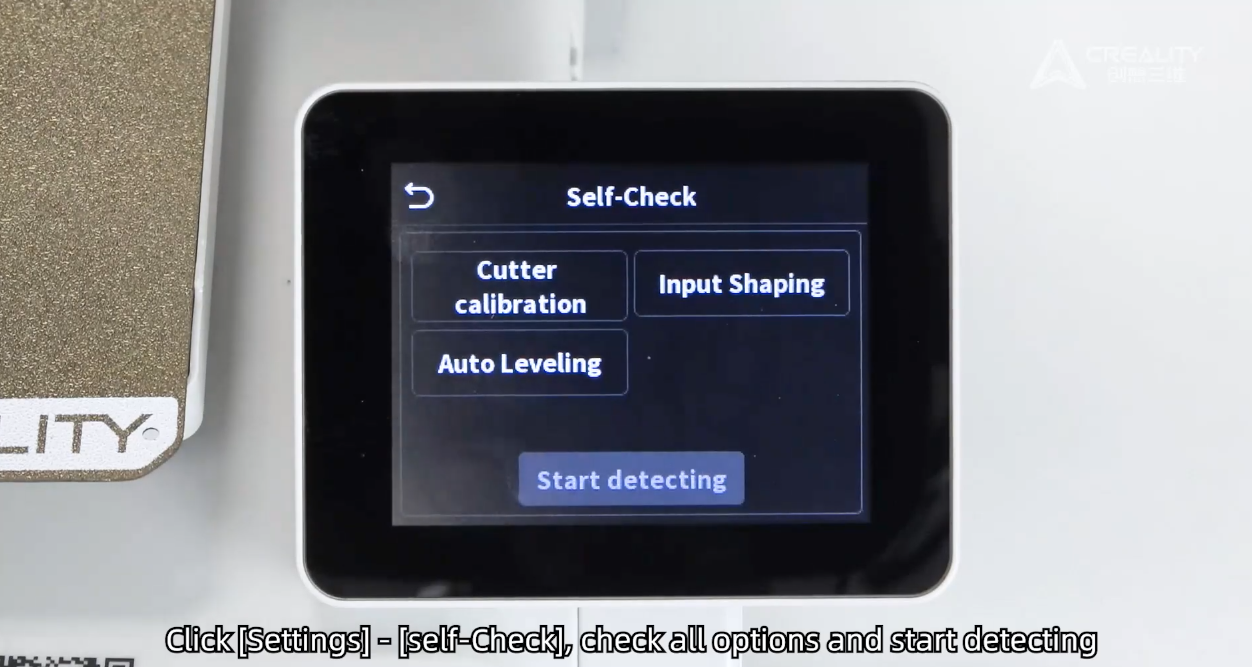
- Step 10: All done! Re-Power on the device and re-run self check for all option selected. Under Settings.
Quick Reference: Tools & Common Issues
| Tools & Materials | Common Nozzle Problems |
|---|---|
| Replacement nozzle (Ender 3 V4 compatible) | Severe clogging that won't clear with cleaning, when using cold pull, you may need replace the nozzle assembly |
| White thermal grease (for cold side of the nozzle assembly) | Worn nozzle causing poor print quality, due to inaccurate nozzle size compare what you have sliced for. |
| Silicone sock (spare, if needed, due to age and cracking/loose on the hotend) | Changing nozzle size for different print needs but forget to re-slice files. |
| Flush cutters (for filament, if you find cutter is not cutting filament flush) | Leaks or "blob of death" from loose installation |
| Cleaning brush/needle | Heat creep causing jams and clicking extruder |
Spare Part:
Stock Ender 3 V4 Nozzle Assemby Buy Here from DREMC in Australia, shipping worldwide.
Install Video:
Written Guide:
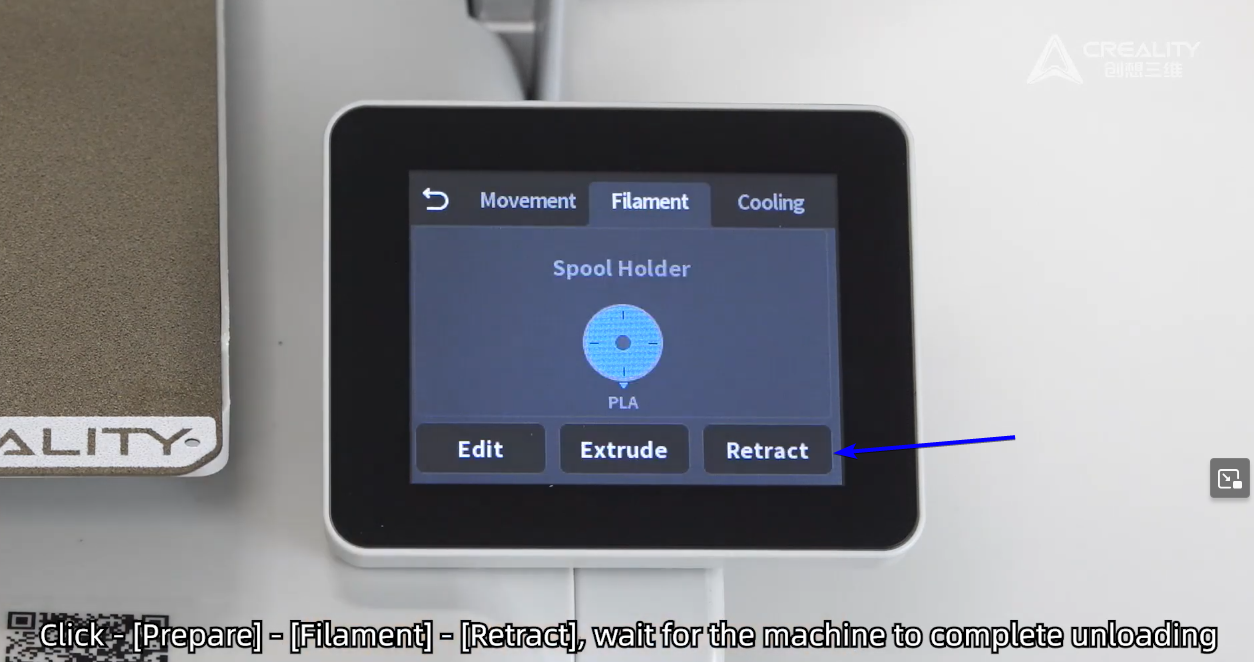
Step1: Ensure filament has been unloaded from the machine/toolhead.
If not, power on the machine, on the screen use prepare, filament, retract option to unload the filament.
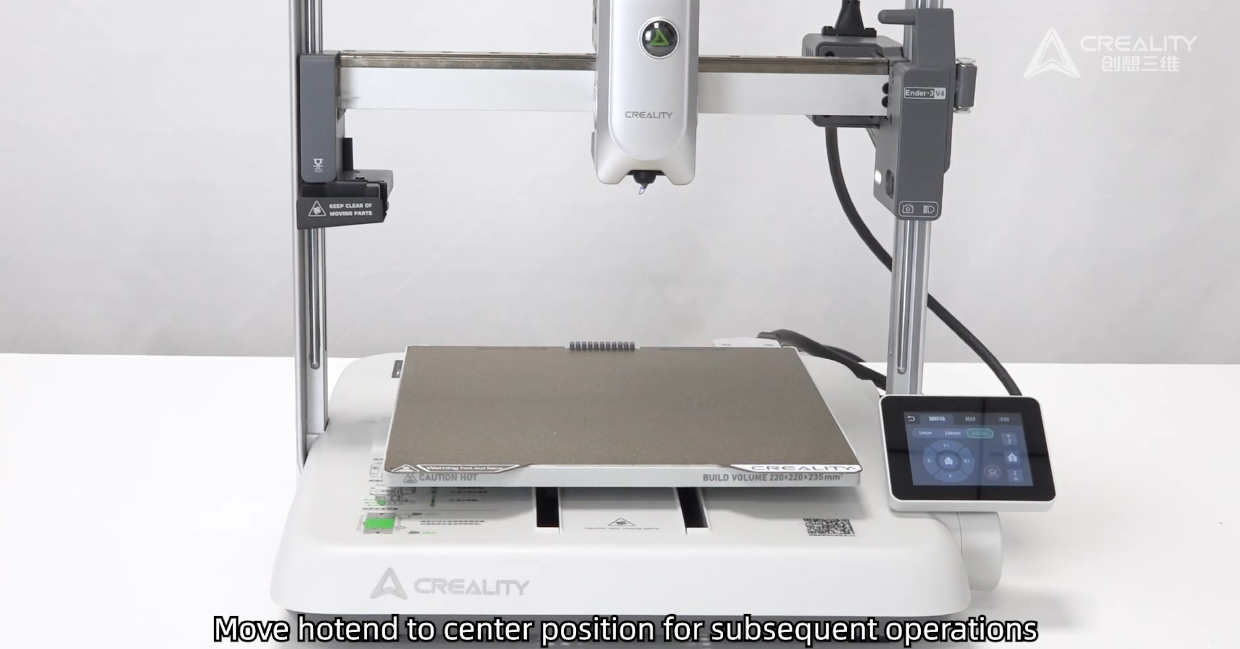
Step 2: If the machine is not power on, power on the machine, and using on screen move command move the gantry to higher location, roughly 30-40mm higher from the bed and centre of the toolhead for easier access.
Note: As you may touch build plate with oily hands by accident, our suggestion is remove build plate or cover during following steps.
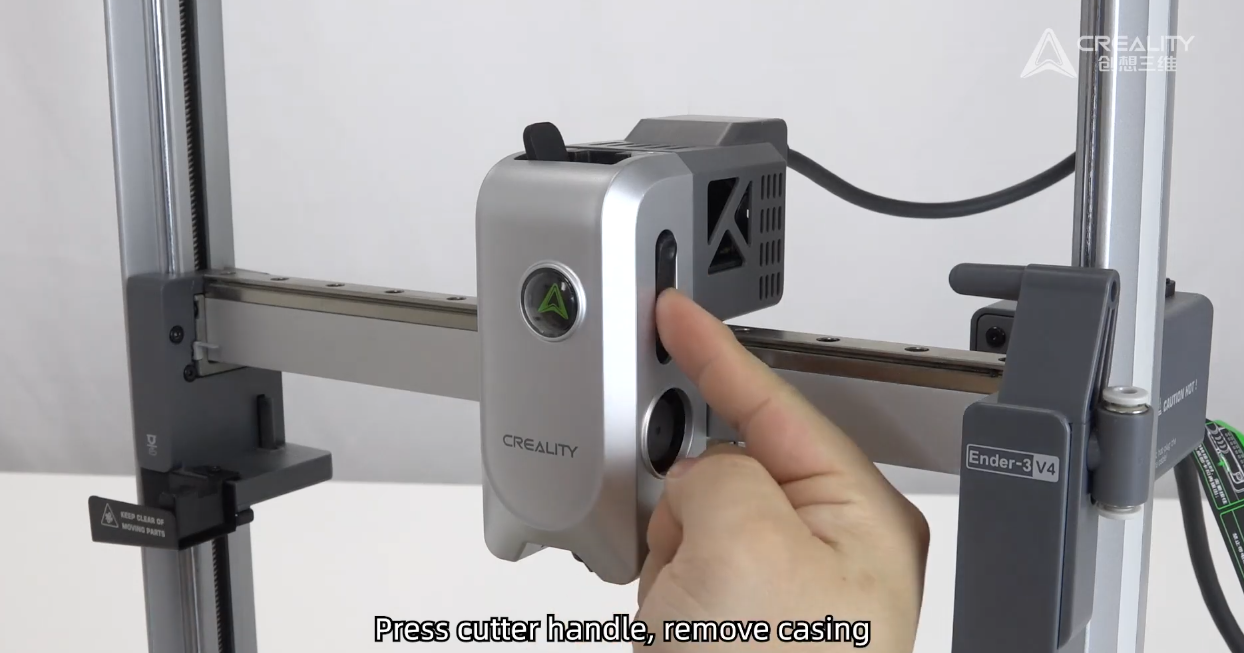
Step 3: Wait for the machine to cooldown, before powering off the machine and remove the front cover.
Step 4: Remove Silicon Sock
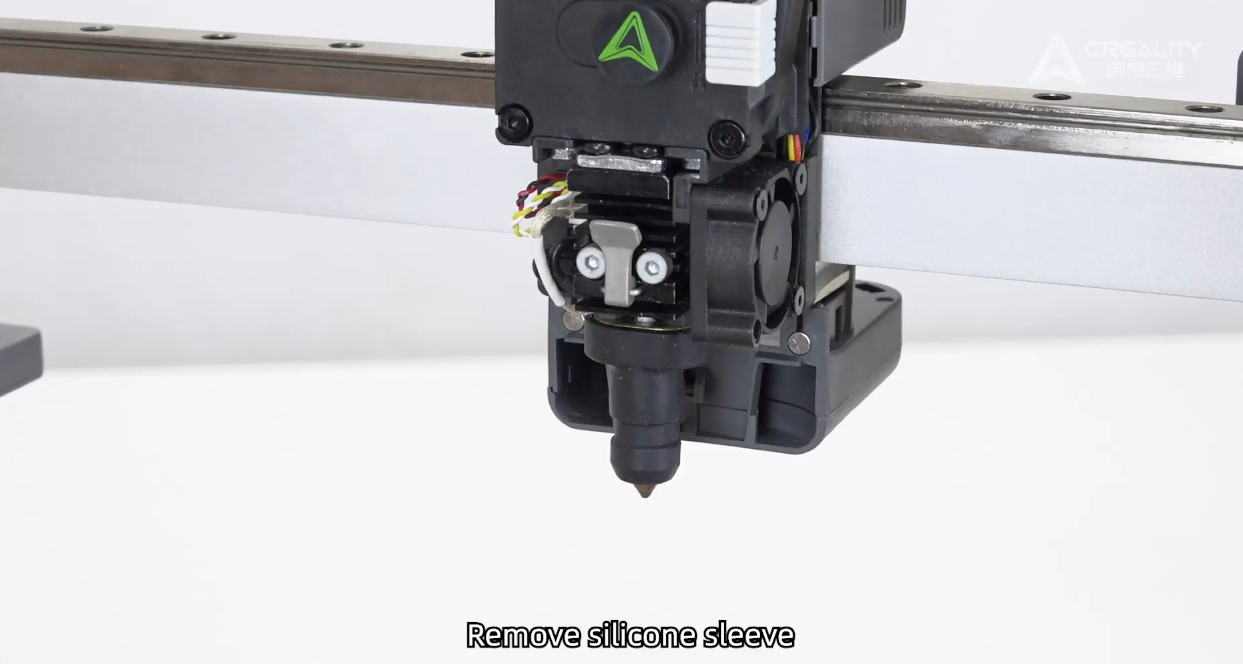
Step 5: Release the nozzle clip by pushing downwards and out to release the clip.
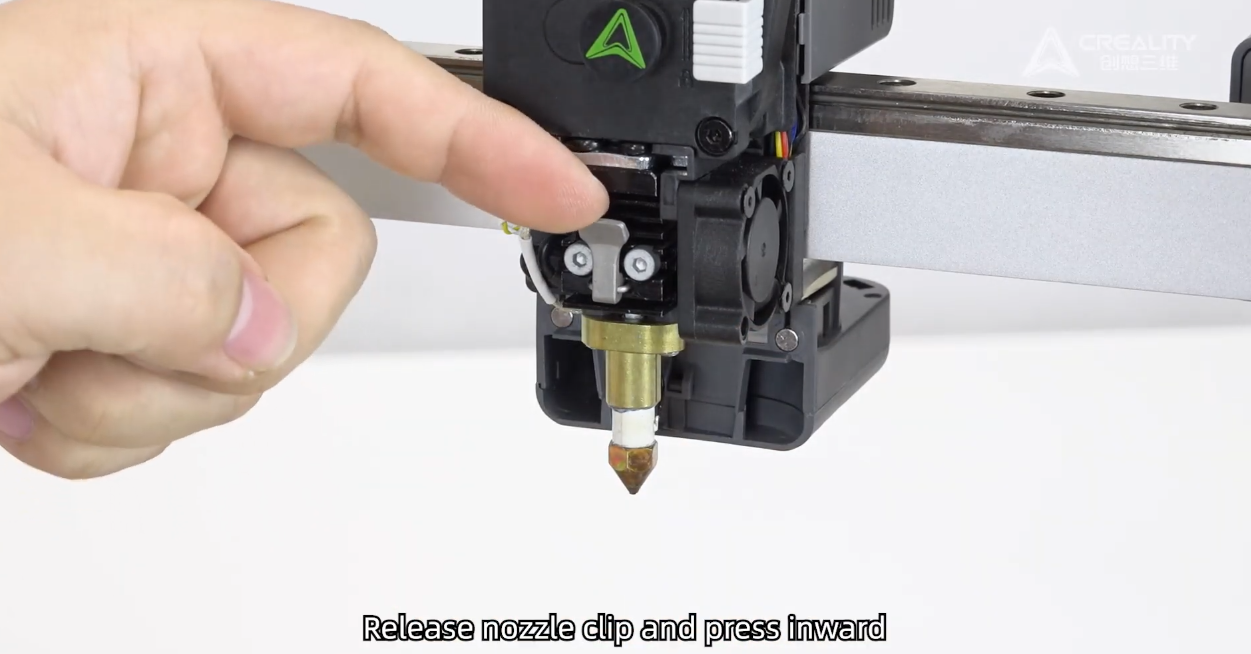
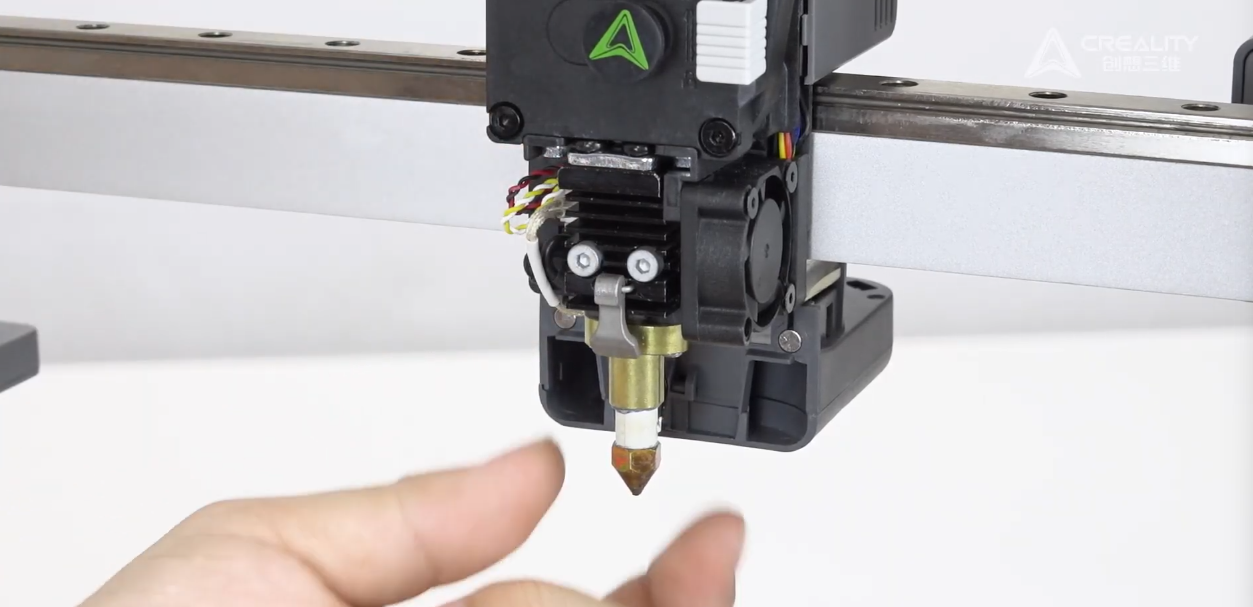
Step 6: Pull and remove the nozzle.
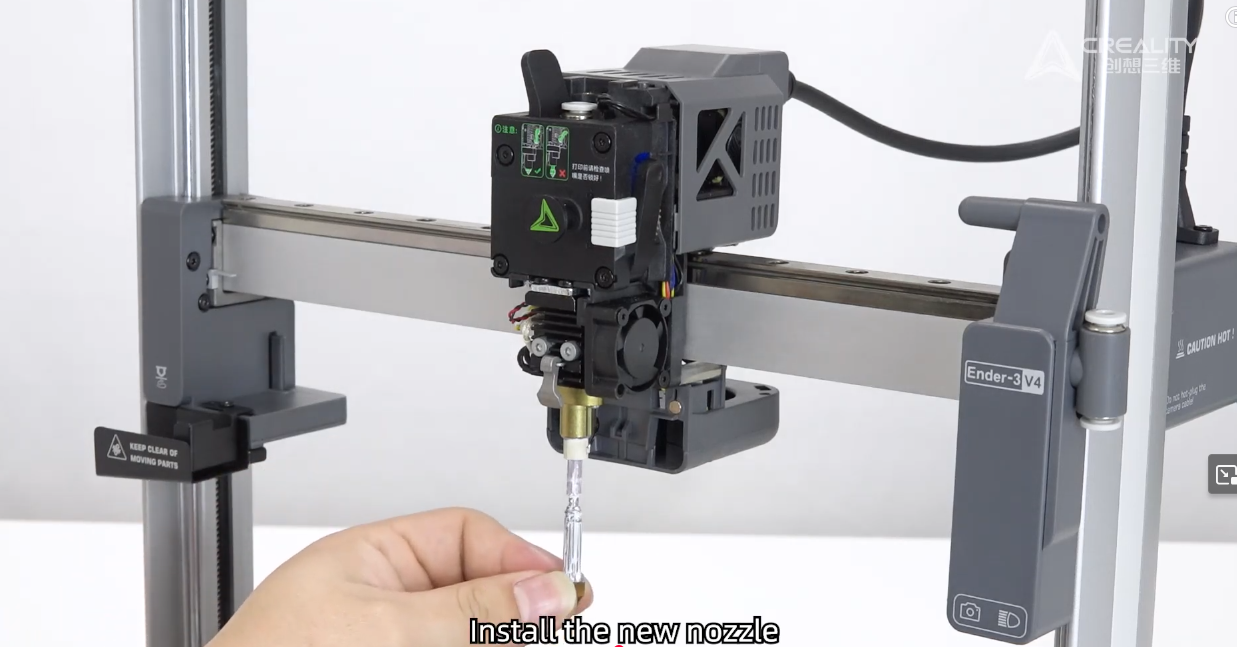
Step 7: Install New Nozzle
Ensure you apply thermal paste on copper section as shown below before install.
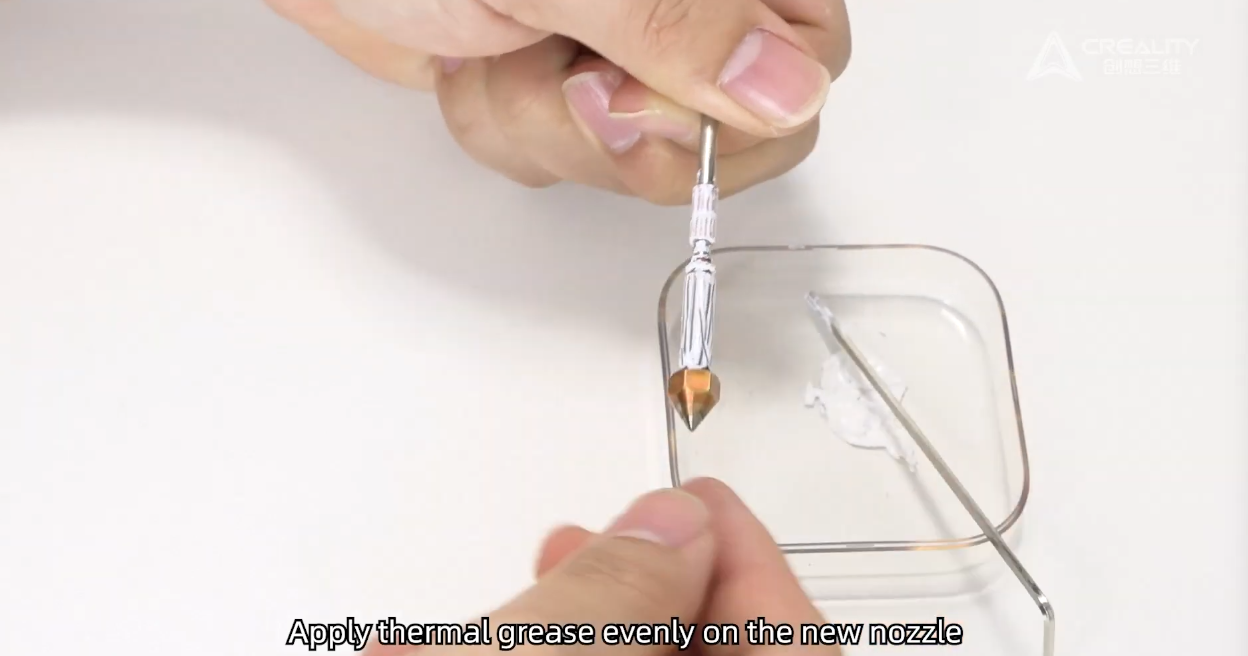
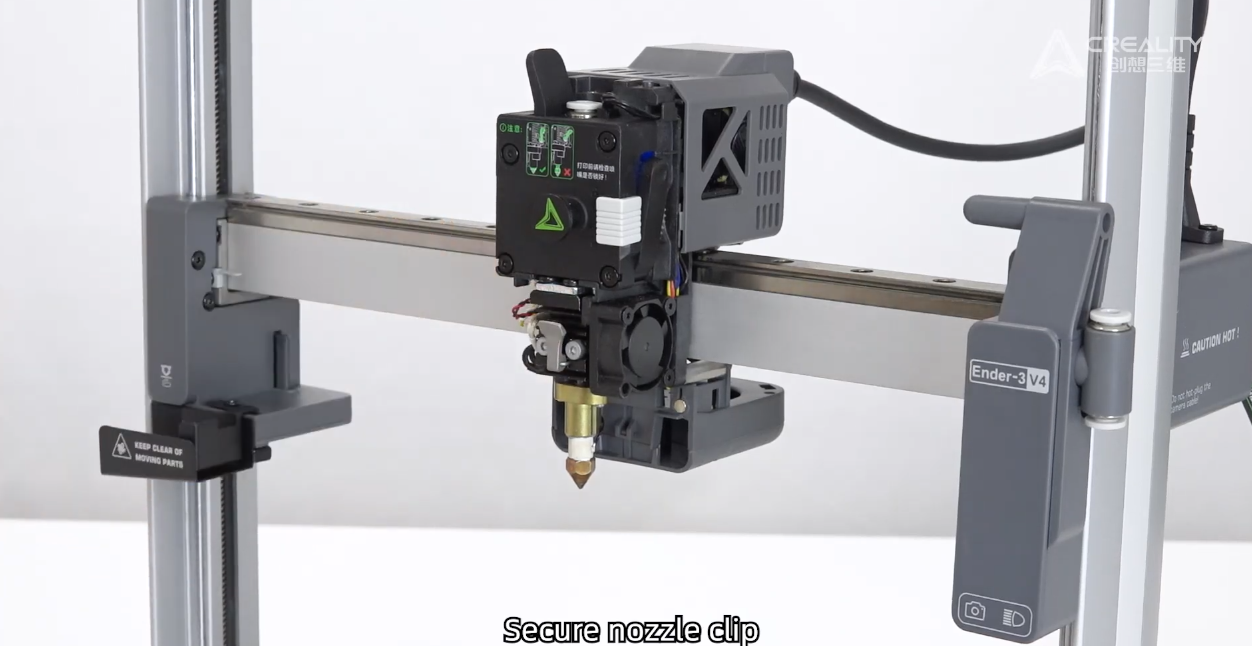
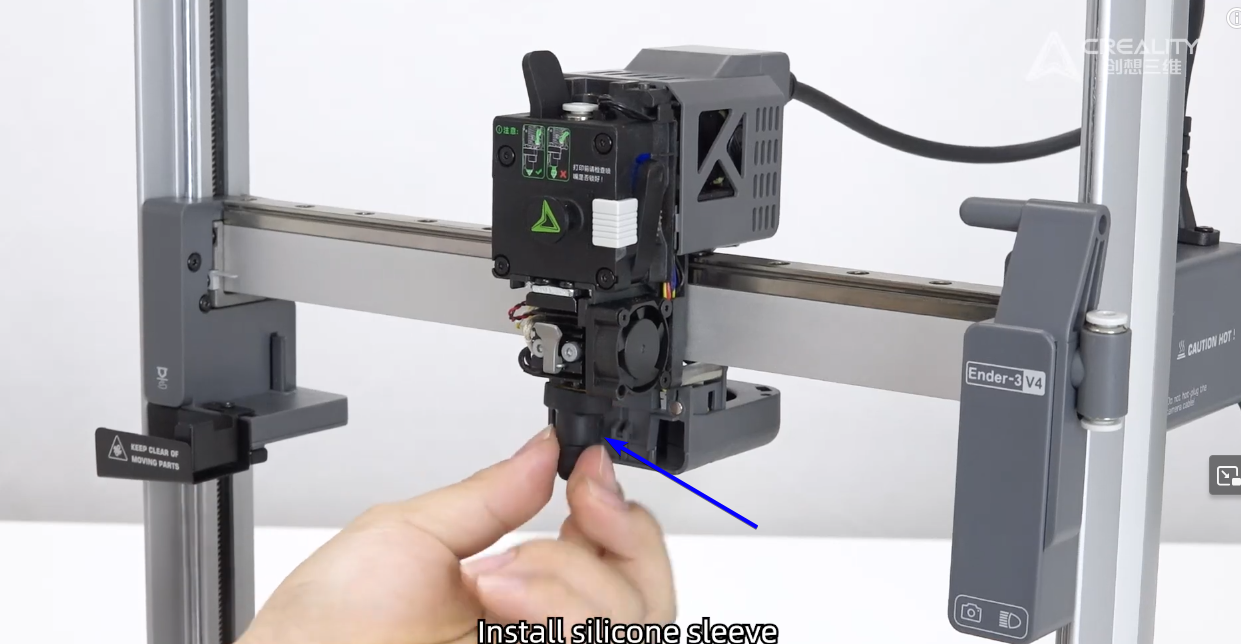
Step 8: Pull the nozzle clip to secure the new nozzle and reinstall sock.
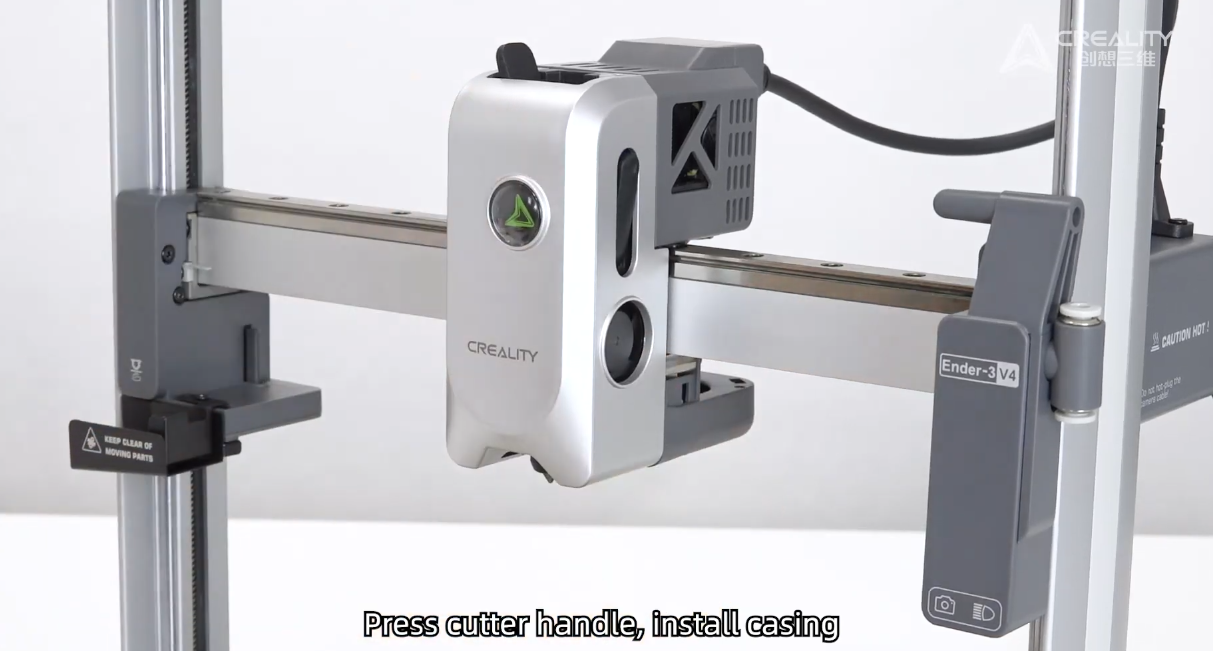
Step 9: Reinstall front fan cover, by pressing down the cutter blade leaver to install front cover.
Step 10: All done! Re-Power on the device and re-run self check for all option selected. Under Settings.
After calibration, you can re-load your filament.
Was this article helpful?
That’s Great!
Thank you for your feedback
Sorry! We couldn't be helpful
Thank you for your feedback
Feedback sent
We appreciate your effort and will try to fix the article